If you have ever wondered how to optimize gaming pc for 8k gaming, you are not alone. More and more enthusiasts are pushing their rigs toward that massive 7680 x 4320 resolution, and the results can be absolutely jaw dropping. But getting there takes more than just buying expensive parts. It takes smart configuration, realistic expectations, and knowing which settings actually matter.
This guide walks you through everything step by step, from picking the right hardware to fine tuning your software settings so your system runs as smoothly as possible at 8K.
What Makes 8K Gaming So Demanding
Before jumping into optimization, it helps to understand what you are dealing with. 8K resolution means your GPU has to render over 33 million pixels every single frame. Compare that to just 2 million pixels at 1080p. That is a staggering jump, and it explains why even the most powerful graphics cards on the market today can break a sweat at this resolution.
The honest truth is that 8K gaming in 2026 is still at the bleeding edge. A small number of titles can run at native 8K with playable frame rates, and most modern AAA releases still require some form of upscaling to hit 60 frames per second. Knowing this upfront will save you a lot of frustration later.
Getting the Right Hardware First
You cannot optimize your way around bad hardware. Before any software tweaks matter, your rig needs to meet a certain baseline.
Graphics Card
The GPU is the single most critical component for 8K gaming. Right now the NVIDIA RTX 4090 is the top choice, packing 24GB of VRAM and enough raw horsepower to handle 8K in select titles. The AMD Radeon RX 7900 XTX is a solid alternative, though it generally trails the 4090 when pushed to 8K workloads. Even with these cards, expect somewhere between 30 and 60 frames per second in demanding games with settings dialed back.
CPU
At 8K the GPU becomes the main bottleneck, so the CPU matters a bit less than at lower resolutions. That said, you still want a flagship processor. The AMD Ryzen 9 7950X3D is an excellent pick thanks to its 3D V Cache technology, and the Intel Core i9 14900K is equally capable. Either one will handle game logic, physics, and AI without getting in the way.
RAM
32GB is the floor for 8K gaming. 64GB gives you more breathing room, especially if you plan to multitask or stream at the same time. Make sure you are running DDR5 at 6000MHz or faster, and always enable XMP or EXPO profiles in your BIOS so your memory actually hits its rated speed rather than defaulting to a slower baseline.
Storage
Use an NVMe SSD with PCIe 4.0 or 5.0 support. At 8K, games pull in massive high resolution textures constantly, and a slower drive will cause noticeable pop in and stuttering. Aim for at least 2TB since modern games can easily eat through 100GB each.
Power Supply
An RTX 4090 can draw up to 450 watts on its own. Add a power hungry CPU and everything else in your system, and total draw can reach 900 watts under load. A 1000 watt 80 Plus Gold certified PSU is the minimum recommendation, and 1200 watts is safer if you plan to overclock anything.
Monitor and Cables
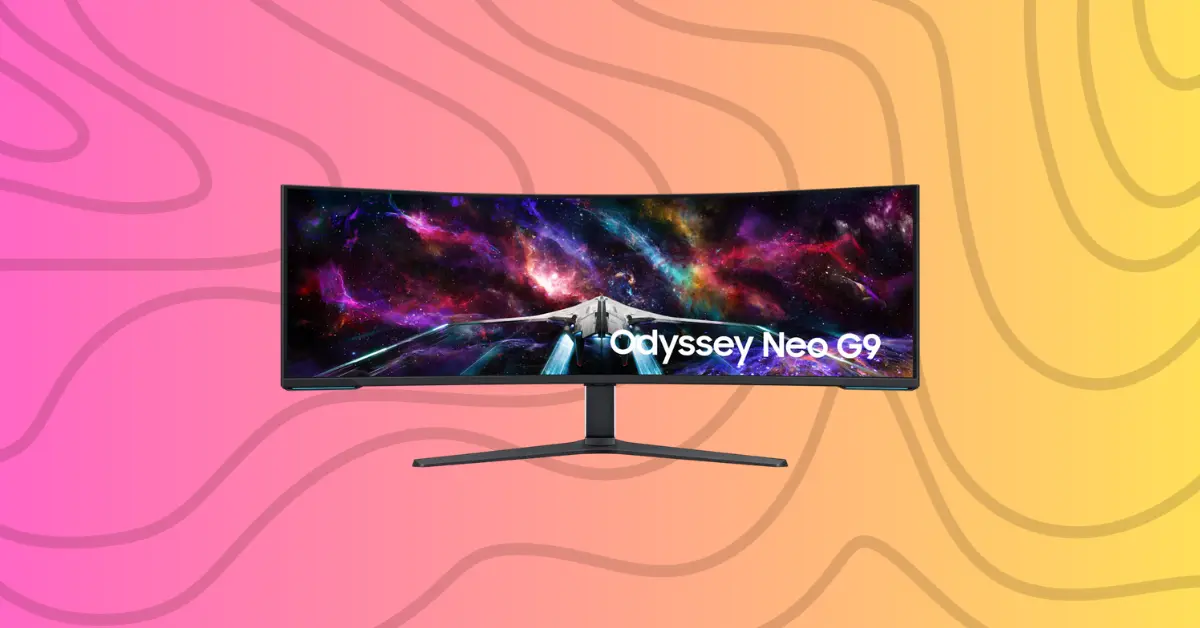
Finding an 8K gaming monitor is still a challenge. Options are limited and typically start around two thousand dollars, with most capped at 60Hz. Popular choices include the Dell UltraSharp UP3218K and select LG 8K models. You will need either DisplayPort 1.4 or HDMI 2.1 to push an 8K signal, and make sure your cable supports the full 48Gbps bandwidth that HDMI 2.1 provides.
How to Optimize Gaming PC for 8K Gaming: Step by Step
Once your hardware is in place, the real optimization work begins.
Step 1: Set Up Your Display Correctly
Connect your monitor using DisplayPort 1.4 or HDMI 2.1. Right click the desktop, open Display Settings, and manually set the resolution to 7680 x 4320. Confirm the refresh rate is at its maximum, which for most 8K monitors means 60Hz. Also check that your color depth is set correctly. Most 8K panels support 10 bit color which improves accuracy, but it does require more bandwidth so verify your cable can handle it.
Step 2: Keep Drivers Updated
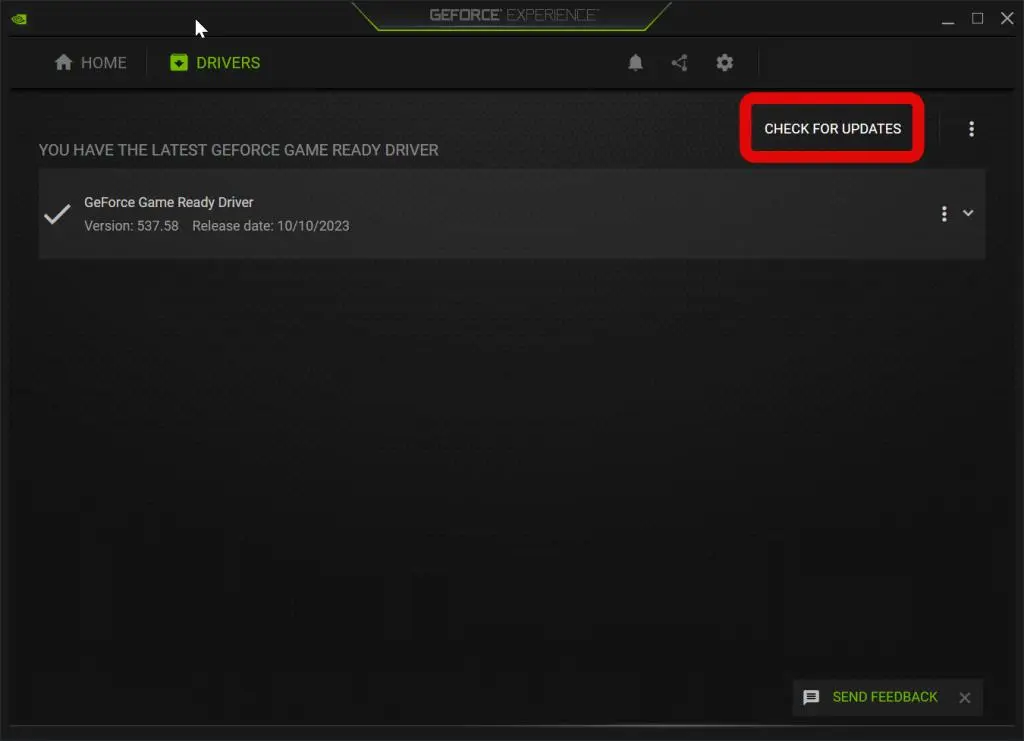
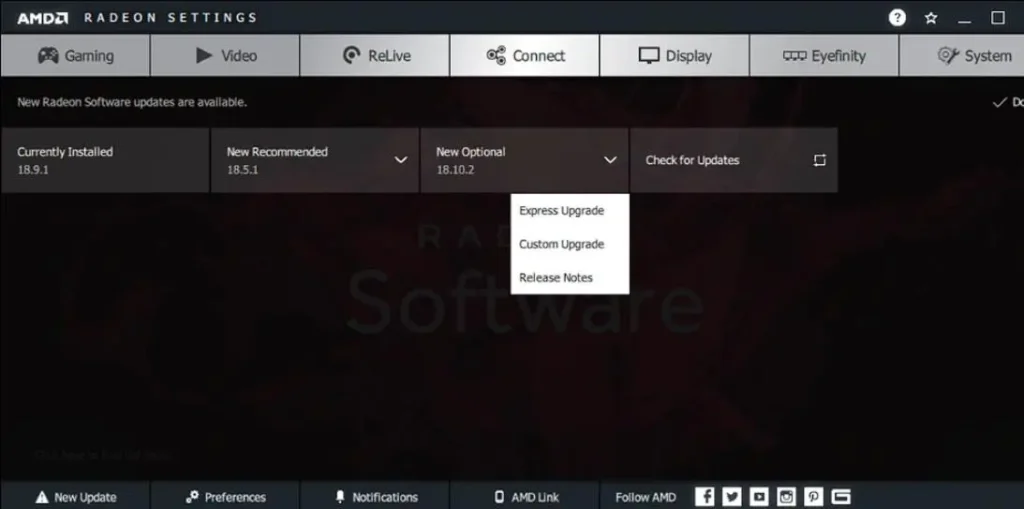
This sounds basic but it genuinely matters at 8K. NVIDIA and AMD both push game specific optimizations through driver updates that can move the needle on performance. Update your GPU drivers, motherboard chipset drivers, and Windows itself before doing anything else. Running outdated drivers is one of the most common reasons people leave performance on the table.
Step 3: Enable Resizable BAR or Smart Access Memory
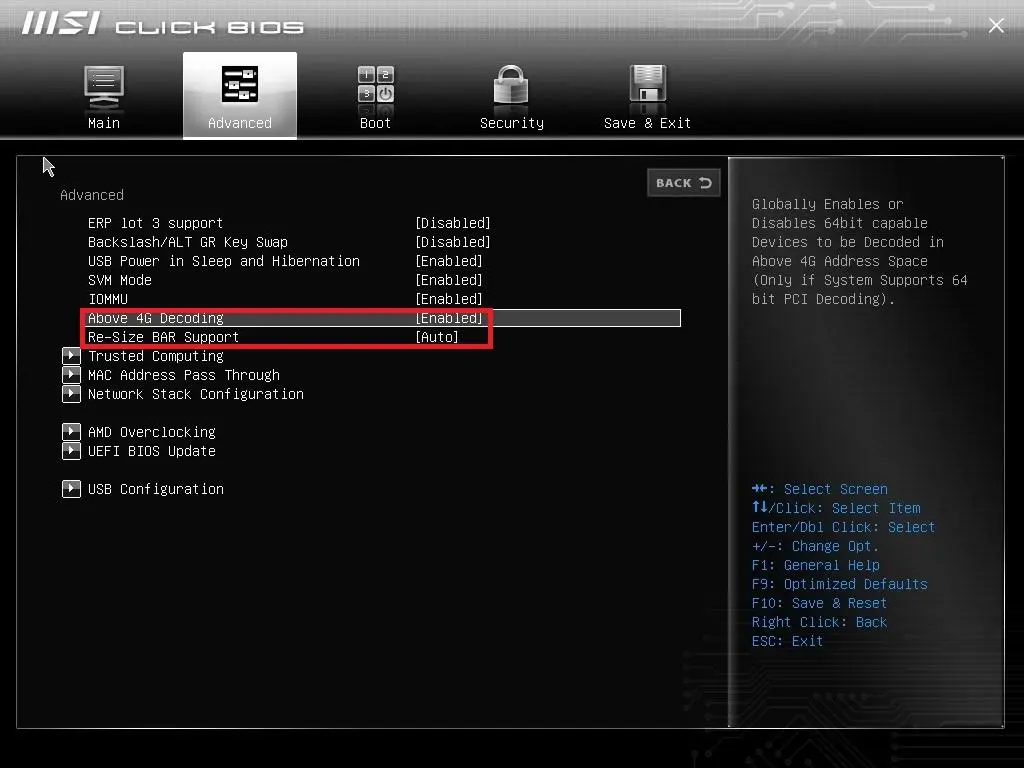
Open your GPU control panel and turn on Resizable BAR if you are on NVIDIA, or Smart Access Memory if you are on AMD. Also check your BIOS to make sure Resizable BAR is enabled there too, usually found under PCIe configuration options. This allows your CPU to access the full GPU memory pool and provides real performance gains at high resolutions.
Step 4: Optimize Windows
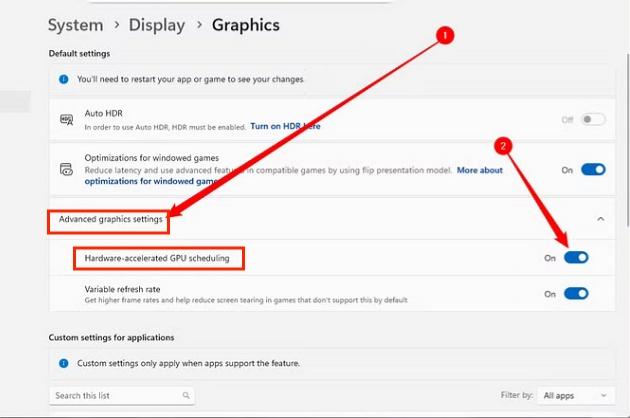
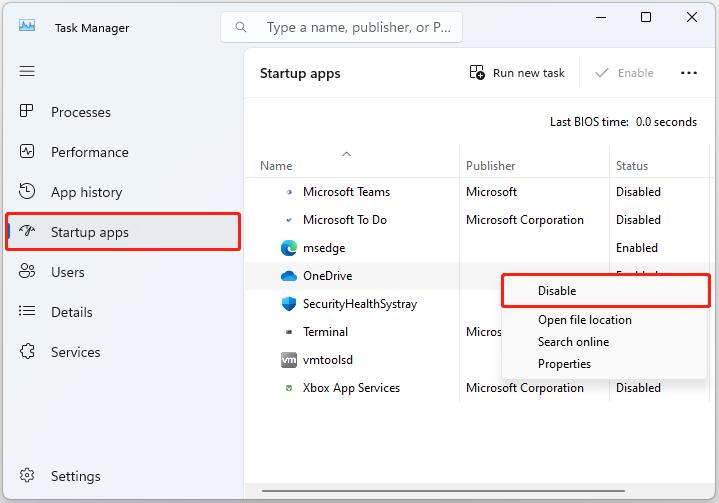
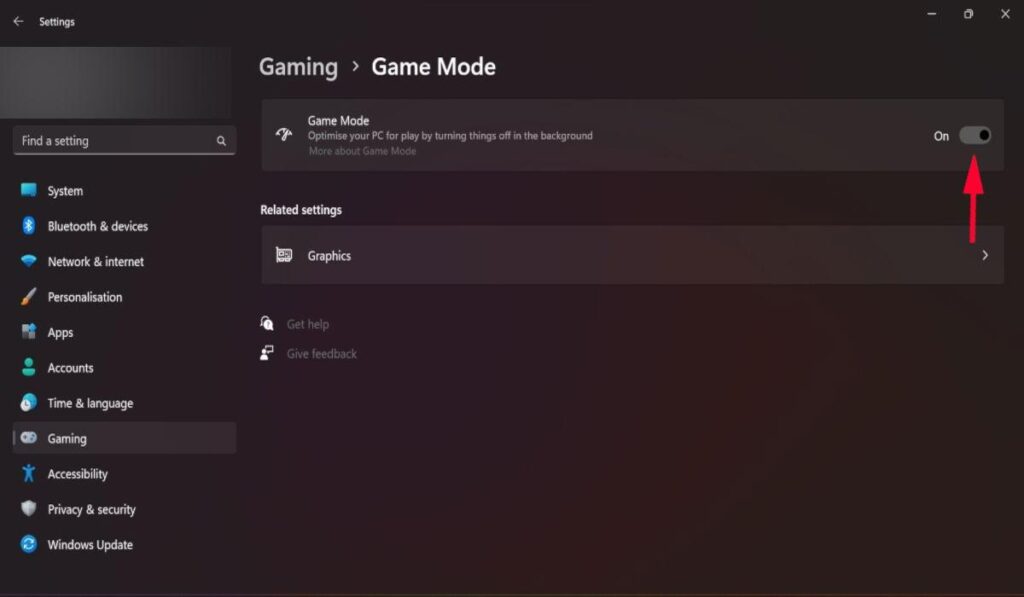
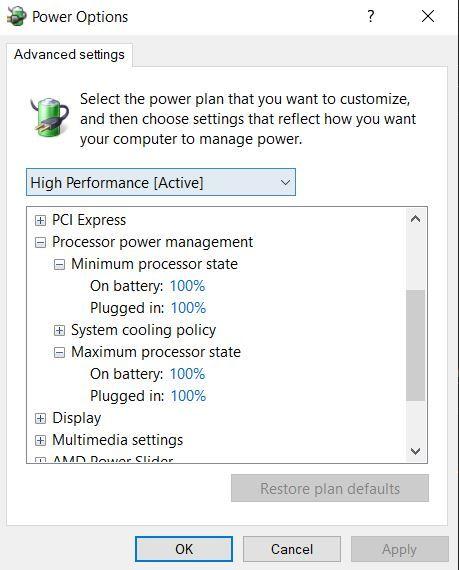
Set your power plan to High Performance or Ultimate Performance. Turn on Windows Game Mode under Settings and then Gaming. Disable unnecessary background applications and visual effects. Right click on This PC, go to Advanced System Settings, and under Performance choose Adjust for Best Performance. Every bit of headroom helps at 8K.
Step 5: Dial In Your In Game Settings
This is where most of the practical optimization happens. Here is how to approach each setting at 8K:
Texture quality can stay at High or Ultra. With 24GB of VRAM the RTX 4090 can handle maximum textures without much penalty, and this is the setting that actually makes 8K look as good as it should.
Shadow quality should come down to Medium. Shadows are extraordinarily demanding at high resolutions and dropping them from Ultra to Medium gives you a meaningful frame rate boost without completely ruining the look of the game.
Anti aliasing can be turned off or set to its lowest option. At 8K the pixel density is so high that jagged edges are nearly invisible anyway. Spending GPU budget on anti aliasing at this resolution is one of the least efficient things you can do.
Ray tracing should be used selectively. It can cut frame rates dramatically at 8K, so only enable the effects that matter most to you visually and leave the rest off.
Motion blur, depth of field, and ambient occlusion can all be reduced or disabled. These are expensive post processing effects that contribute less to visual quality than raw resolution and texture detail.
Step 6: Use Upscaling Technology Aggressively
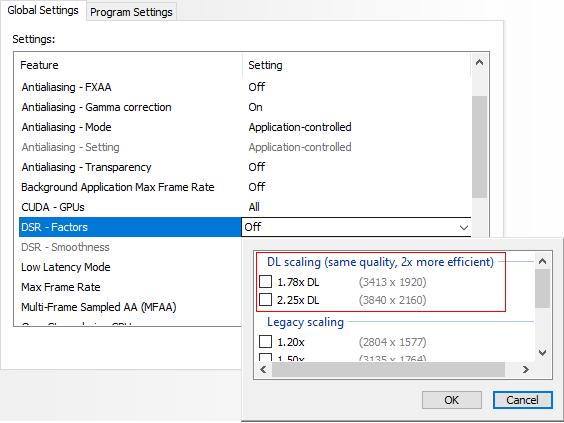
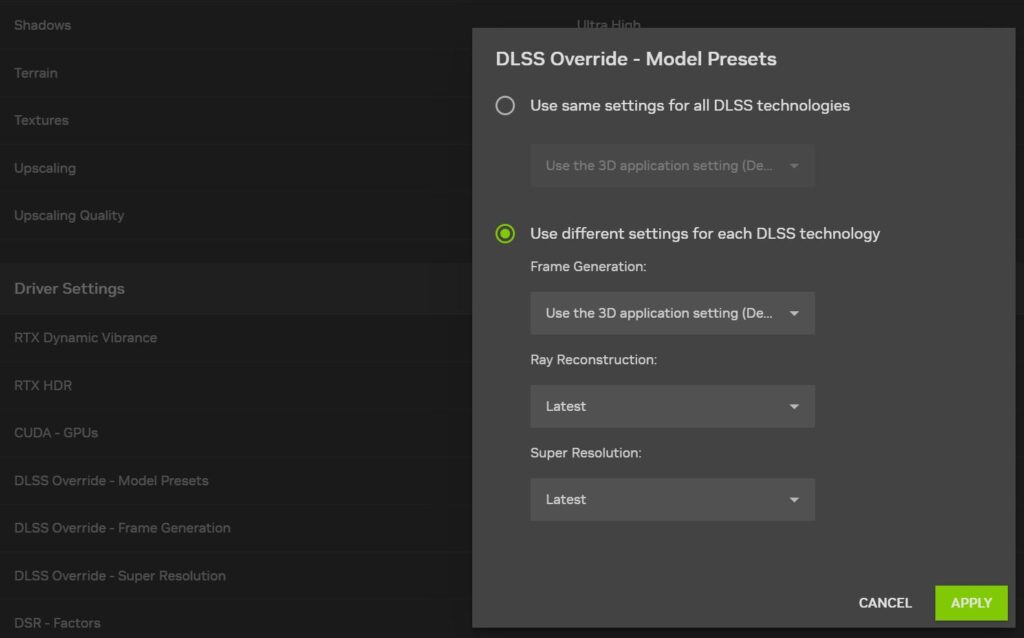
This is probably the most important optimization step of all. DLSS on NVIDIA cards and FSR on AMD cards render the game at a lower internal resolution and then use intelligent algorithms to scale up to 8K. The results are remarkably close to native quality while delivering much better frame rates.
DLSS Quality mode renders at roughly 5K internally and upscales to 8K. In practice the image quality difference from native 8K is very hard to spot, while frame rates can double or even triple. DLSS Performance mode drops the internal resolution further for games that need more headroom. FSR works similarly and has the advantage of running on a wider range of hardware including older GPUs.
If you are not using upscaling at 8K you are making life unnecessarily hard for yourself. Treat it as a standard part of your setup rather than a compromise.
Cooling and Temperatures at 8K
When a GPU runs at full load for extended sessions at 8K it generates serious heat. Keep GPU temperatures below 85 degrees Celsius to avoid thermal throttling. Use MSI Afterburner to set a custom fan curve that ramps up cooling earlier rather than letting the card get hot before responding. Consider undervolting your GPU as well. Reducing the voltage slightly while maintaining stable clock speeds lowers both heat output and power draw without meaningful performance loss.
For your CPU a 360mm all in one liquid cooler or a large high end tower cooler will keep things in check. Make sure your case has proper airflow with dedicated intake and exhaust fans.
Is 8K Gaming Worth It in 2026
The visuals are genuinely impressive when everything lines up. But there are real tradeoffs. Monitor options remain limited and expensive. Most displays are capped at 60Hz, which means giving up the smooth motion that 144Hz gaming offers at lower resolutions. Many games also have UI scaling issues at 8K that require manual fixes.
For pure visual clarity in slower paced games or graphically rich single player titles, 8K delivers something special. For competitive multiplayer or anyone who cares about frame rate, 4K at 144Hz still offers a better overall gaming experience.
Final Thoughts
Learning how to optimize gaming pc for 8k gaming is a process that involves both hardware and software working together. The hardware sets the ceiling, but the software configuration determines how close you get to it. Keep drivers updated, use upscaling, prioritize texture quality over post processing effects, and invest in proper cooling. Do those things consistently and 8K gaming becomes not just possible but genuinely enjoyable.